My sister gave me this mouse pad a number of years ago, and I just love it. “Smart women back up their words,” it says. So true.

Well, this week I am also preaching, “Smart women back up their files,” and I am backing that up. I have a major archiving project going on at my house—25 years worth of research is all going digital. Scary? Yes. Slow? Yes. Do I want two and a half decades of work zapped with one power surge or a spilled soda? No.
In recent years I have used two methods of file insurance: Dropbox gives me synched files on a desktop, laptop, in the cloud, and on an iPad. Carbonite backs up the desktop in the cloud. So far, so good.
But my new archiving project has given me a wee problem…storage space. I am scanning full pages in color, gray scale, or black and white at a resolution of 300 dpi, and am scanning smaller photos at a resolution of 600 dpi. Each file runs anywhere from 10 mb to 50 mb. Initially I was saving them in .jpg format, but have now switched to .tif format so the quality is not degraded in the future. My 222 gb hard drive only had 1 gb free last week! Oops. I needed a solution.
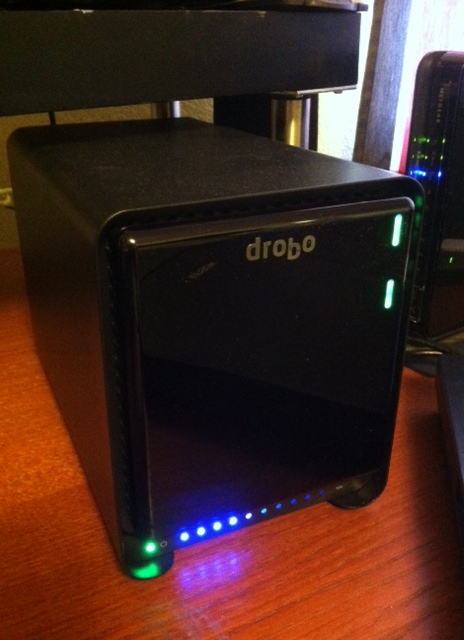
Drobo to the rescue! We invested in an external hard drive caddy made by Drobo. I am not a real computer geek and don’t know all the right terminology, but I can explain what it does: I allows me to insert up to five different drives into it, and it replicates the files on all the drives. It’s called redundancy. So if one drive fails the other ones have the files, and it has it’s own internal battery, too, just in case of a power outage.

I got two 2 terabyte drives for my Drobo 5N. That’s 4,000 gigabytes! Haha! Now I can scan my whole life into it. And that’s exactly what I am doing. Here’s how:
 Paper files from my filing cabinet get loaded into a document feeder on my Brother MFC 8670. Using the scanning interface on my desktop computer, I assign a file name and tell it which folder to save it in. Then click “scan”. And voila! (Or viola! as I like to say) The stack of papers gets gobbled up and automatically scanned one by one. Eeeeasy. Then the paper files get recycled, unless they are source documents I need to save. In that case they are labeled and placed in a plastic sleeve in a binder. Very few documents from my file cabinets are originals that need to be saved.
Photos and keepsakes get scanned one at a time on my Epson Perfection v30 photo scanner. Again, each item is assigned a file name and folder.
 Then it’s into archival sleeves and binders for certain photos, and into archival photo boxes for photos that are of the snapshot variety. The keepsakes have been sifted through, too. Just how many actual report cards do I really need to save? One or two will do, and it’s to the recycling box for the remainder.
My office has turned into a scanning pipeline of sorts, with boxes labeled, “To be scanned,” “To be filed in archival sleeves and binders,” and “Recycle.” That way I don’t get slowed down by the archiving process. I am all about scanning right now.
Why the digital frenzy, you ask? In recent years we inherited all the photos, keepsakes, and files from my parents and husband’s parents. Add that to a pretty good collection of stuff I have saved from my own life and family, and well, an episode of “Hoarders: Genealogists” could be on the horizon. I refuse to leave all this for my children to sift through. I want it to be accessible to future generations.
Some days I spend all day on it, but a more reasonable approach has me setting a one hour timer and just doing what I can in 60 minutes. It’s surprising how much can be accomplished in one hour.
Any Smart Women or Men out there? Have you attempted to digitize your files or photos? Let me know if you have any good tips!






 On Granny's Trail